


To Blooket join a live game, go to the Blooket play page (play.blooket.com), enter the Game ID your teacher is showing, pick a nickname, and choose a Blook. Most people are in the lobby within a minute. This guide covers every way to join, what changes for homework, why a Blooket code sometimes fails, and which host settings decide who gets in.
How to join a Blooket game step by step
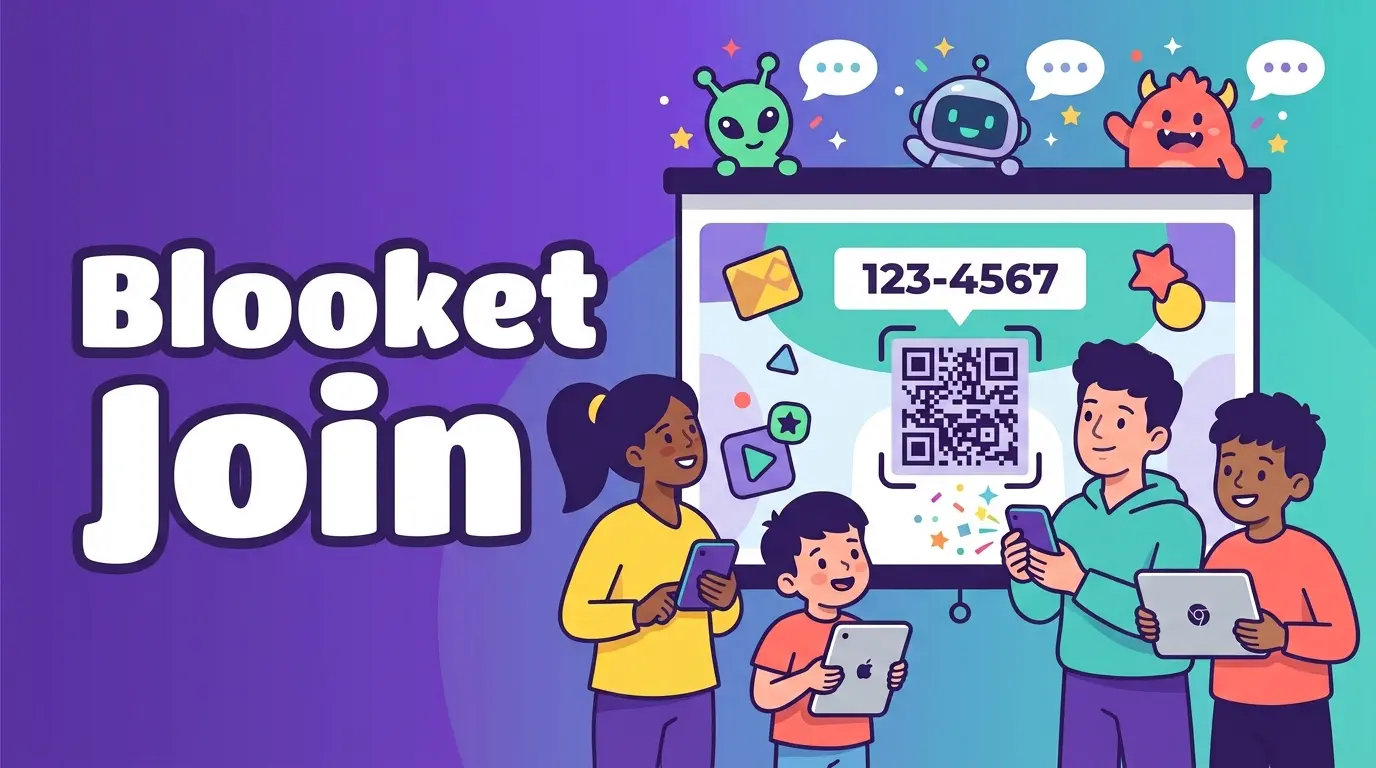
Blooket’s help center lists three ways in: enter the 7-digit game code on the play page, scan the QR code with your device camera, or click the Join Link if your teacher shared one. The Game ID and the game code are the same thing.
- Open the play page in a browser on your phone, tablet, Chromebook, or computer.
- Enter the Game ID exactly as the host’s screen shows it.
- Type a nickname. If the host turned on “Use Random Names,” you’ll get a generated one instead.
- Choose a Blook while you wait.
- Stay in the lobby until the host starts the game.
The steps are identical on every device. On a phone or tablet, the QR code saves you the typing. There’s also a small extra in Blooket’s own student guide: you can play a secret game while waiting for the game to start.
Joining with a QR code or a join link
The QR code and the link do the same job as the Game ID. They just skip the typing. In a classroom, the QR code is usually fastest because students point their camera at the projector and land on the join screen. In a virtual class, the host can paste the join link into the chat, and one click takes everyone to the same lobby.
Do you need an account to join Blooket?
No. Student accounts are not required to join games. But if you want to earn points and use your own Blook, you must log in before joining the game. Logging in after you’ve entered the lobby doesn’t attach the account, so do it first.
Only the host needs an account. To create one, you must be over 13 in the U.S., or at least 16 outside it. That age rule applies to signing up, not to joining a live game.
Nicknames and Blooks
A nickname is what the host and other players see on screen. A Blook is the character that represents you, and you pick it in the lobby.
If you can’t type your own nickname, the host has probably switched on Random Names. When that setting is unchecked, students can enter their own nickname. When it’s checked, Blooket assigns one, and you can’t change it. Teachers often use this to avoid distracting or inappropriate names.
How to join a Blooket homework assignment
Homework doesn’t use a Game ID. Teachers share it either as a QR code or as a link, from a virtual classroom, LMS, email, or another source. After you open it:
- Read the Homework Details screen. It shows the homework title, teacher name, due date, and your Correct Goal, which is how many questions you must answer correctly.
- Click Get Started and choose a solo game mode.
- Enter your nickname. Your teacher sees this name.
- Play until you hit the goal. A prompt then asks whether to end the homework or keep playing, and your teacher sees you met the goal even if you continue.
Finish it in one sitting. Closing the tab or leaving it inactive too long means you have to start over from the link or QR code. You don’t need an account for homework either, but logging in lets you earn XP and tokens and spend tokens in the Market.
Playing solo without a code
Solo play is separate from joining a teacher’s game. Find a question set, select Solo, choose a game mode, and press Play. You can browse more than 20 million question sets made by other users, or create your own. No Game ID is involved.
Blooket code not working? The usual causes
Almost every failed join comes down to one of these:
- The host hasn’t opened the lobby. A Game ID only works for a live session. If every student gets the same error, ask the host to confirm the game is actually hosted.
- The game already started and late joining is off. “Allow Late Joining” is checked by default, and unchecking it stops students from joining once the game has started. The host has to restart the game with it turned on.
- The lobby is full. Blooket Plus hosts can run games with up to 300 players, while Starter is limited to 60.
- A typo or the wrong site. Re-read the code from the screen and check you’re on Blooket’s official play page, not a look-alike site.
- A school network filter. If the page loads but nothing happens when you submit, ask your teacher to check with IT.
One more point on code length: the help center says 7 digits, but some older guides say 6. Don’t count digits. Type whatever the host’s screen shows.
What hosts should set before students join
Most join problems start in the host settings, not on the student’s device.
- Log in first. The host needs an account, picks a question set, chooses a game mode, and selects Host. Players don’t need an account for live games.
- Leave Allow Late Joining on for normal classes, since students arrive at different speeds.
- Decide on Random Names before you click Host Now.
- Show every joining option. Display the Game ID and QR code together, and paste the link into your LMS for remote students.
- Check your player cap if the group is large. Starter caps at 60 and Plus at 300.
Blooket join vs. hosting at a glance
| Joining a live game | Hosting a live game | |
|---|---|---|
| Account needed | No | Yes |
| Where to go | The Blooket play page | The Blooket website (logged in) |
| What you need | Game ID, QR code, or link | A question set and a game mode |
FAQs
Where do I enter a Blooket join code?
On the Blooket play page (play.blooket.com), the dedicated page for live games. Type the Game ID the host is showing, then press the arrow to continue.
Can I join a Blooket game after it has started?
Only if the host left Allow Late Joining on. If it’s off, you’ll have to wait for the next game or ask the host to restart with the setting enabled.
Do I need an account to join a Blooket game?
No. A live game needs no account, but log in before joining if you want your own Blook and points to count.
Why can’t I choose my own nickname in Blooket?
The host has Use Random Names switched on. The setting assigns a generated name to every player, and only the host can turn it off.
How do I join Blooket homework without a game code?
Use the QR code or link your teacher shared. Homework opens on a details screen with your Correct Goal, and then you pick a solo mode and play.
Why does my Blooket code say the game isn’t available?
The lobby probably isn’t open yet, the game may have ended, or the code has a typo. Re-read it from the host’s screen and ask the host to confirm the game is live.
Conclusion
Joining a Blooket game takes under a minute. Open the play page, enter the Game ID (or scan the QR code, or click the join link), pick a nickname, choose a Blook, and wait for the host. You don’t need an account for a live game, but you do need to log in first if you want your own Blooks and points to count.
When a Blooket code doesn’t work, it’s almost always one of four things: the lobby isn’t open, late joining is off, the 60-player free limit has been reached, or the code was mistyped. Homework is the exception, since it runs on a link or QR code instead of a Game ID and is best finished in one go.
Hosts can prevent most of this before class. Keep Allow Late Joining on, choose the Random Names setting on purpose, and put the code and QR code on screen together.
Read More: Connections Hint Today: Clues and Answers for September 29, 2026